

Quickstart
Konfidence is a software delivery framework for microservice-based software-as-a-service applications. It helps teams deliver complex applications consistently across multiple environments by using immutable, versioned application vectors and a structured release model.
Before you install Konfidence, it helps to know what this setup is for: teams promote the same verified application version across environments instead of rebuilding or reconfiguring it for each deployment.
Cluster setup
Use the Quickstart script to create a local Kubernetes cluster with Konfidence installed. By the end of this setup, you’ll have a running instance and access to its dashboard.
Before you begin, install the following tools:
- Docker — make sure the Docker engine is running.
- kind — creates the local Kubernetes cluster.
- kubectl — lets you interact with the cluster.
- Helm — installs the Konfidence components.
Run the installation:
curl -fsSL https://raw.githubusercontent.com/konfidence-project/konfidence/main/hack/quickstart/quickstart.sh | shThe script creates a kind cluster named konfidence-quickstart and selects it as your current kubeconfig context. It then installs these components in order:
- Flux — controllers that reconcile Helm and Kustomize deployments.
- Konfidence — the controller and API, which also serves the dashboard.
- Kubernetes Landscape Orchestrator — uses Flux to deploy Helm charts and Kustomize configurations for Konfidence.
The Vector Data Service runs in each landscape namespace. It lets applications read configuration and deployment results for a vector at runtime. Install it after creating the landscapes, as described in Create the delivery environment.
The script waits for the Flux deployments and Helm releases to become ready. Running it again reuses the cluster and updates the existing installation.
If you’d like to explore how the installation works or try the steps manually, take a look at the Quickstart script. Its comments explain each step and the components being installed.
Once the installation completes, check the Konfidence deployments:
kubectl get deployments -n konfidence-systemYou should see output similar to this:
NAME                                READY   UP-TO-DATE   AVAILABLE   AGE
konfidence                          1/1     1            1           61s
konfidence-api                      1/1     1            1           61s
kubernetes-landscape-orchestrator   1/1     1            1           42s
The READY column should show that all replicas are ready.
Check that the Flux controllers are also ready:
kubectl get deployments -n flux-systemFor every Flux deployment, the READY column should show that all replicas are ready.
Open the dashboard
The local Quickstart does not include an ingress setup for the dashboard. To access it from your computer, use port-forwarding to connect to the Konfidence API, which also serves the dashboard:
kubectl -n konfidence-system port-forward svc/konfidence-api 8090:8090Keep this command running and open the local dashboard in your browser. You should see the Konfidence sign-in page:
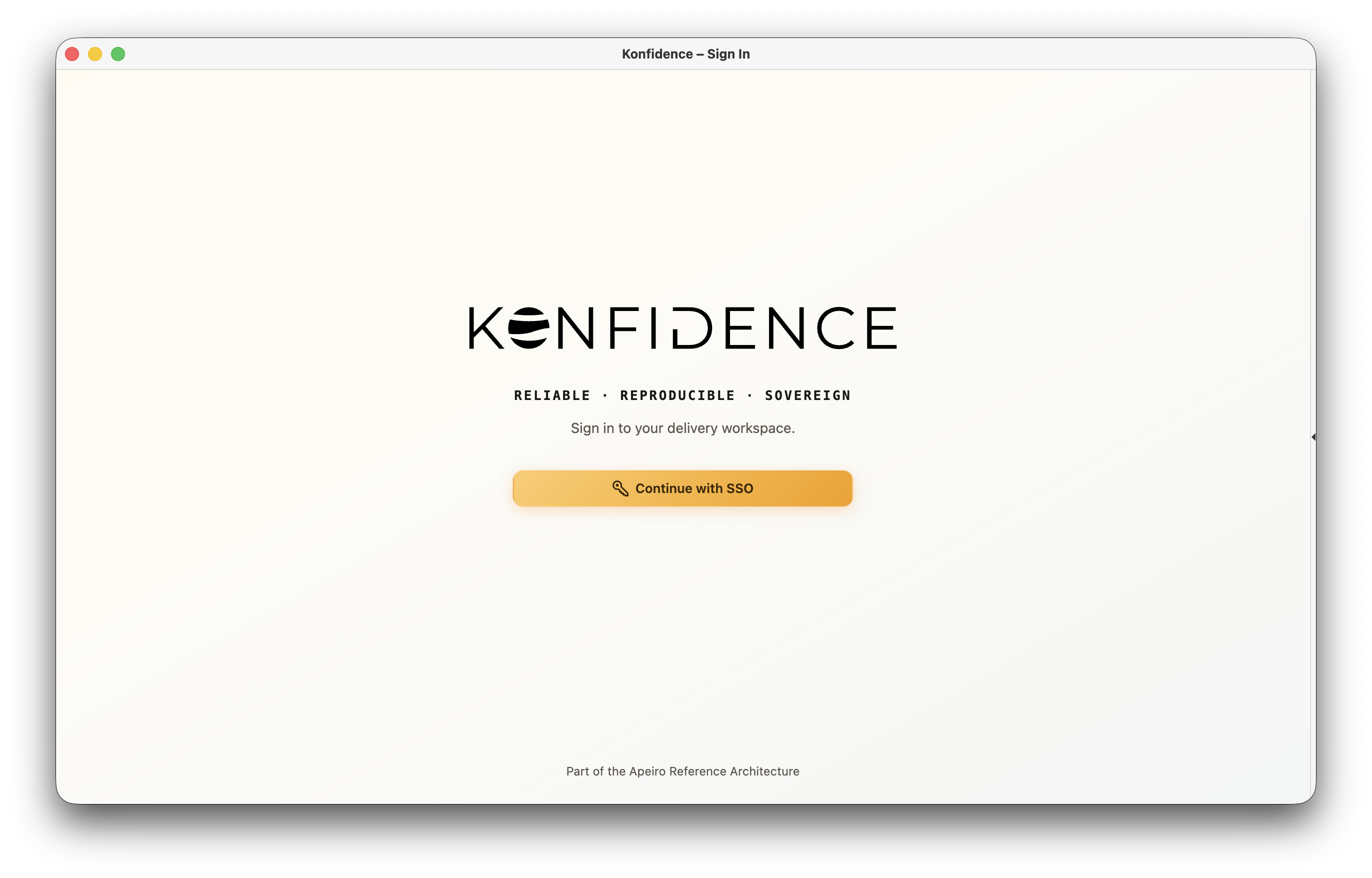
Select Continue with SSO to sign in as Local Admin. No external identity provider is required.
Sessions are stored in memory, so you’ll need to sign in again if the API restarts.
Clean up
Keep the cluster running if you’re continuing with Deliver an application. When you’re finished exploring Konfidence, stop the port-forward with Ctrl+C and remove the cluster. This deletes all workloads and data stored in it:
kind delete cluster --name konfidence-quickstartNext steps
Your local Konfidence instance is ready. Continue with Deliver an application to prepare the Example App in development and approve its promotion to production.